
Guide
Which file format works best for using Moom with SketchUp?
Choose based on what you want to do next
You’ve checked the floor plan, built the model, and now you want to keep working in SketchUp. Which export should you choose?
It helps to think about the next task. Are you moving a partition, trying new finishes, or sending someone the model to look around? Each format suits a slightly different handoff.
| Compared | COLLADA (.dae) | 3D CAD (.dxf) | GLB (.glb) |
|---|---|---|---|
| Best for | Continuing design work in SketchUp with textures | Editing geometry when finish colours are enough | Viewing and sharing a textured model |
| Finishes | Preserves colours and texture images | Preserves finish colours, without texture images | Preserves textures and supported material properties |
| Editing in SketchUp | Ready to edit directly, with no cleanup needed | Editable geometry. You may need to explode the imported group to access individual elements | Better suited to visual review than further design work |
| SketchUp tags | No | Yes. AIA/NCS layers arrive as tags, such as A-WALL and A-DOOR | No |
| Download | ZIP containing the model and its texture images. Extract before importing | Single .dxf file | Single .glb file |
| File size | Generally larger than DXF because texture images are included | Generally smaller because finishes use colours rather than texture images | Compact packaging of geometry and textures. Size depends on model detail and texture resolution |
Note: File sizes vary with the level of detail and textures in your model. Supported import formats also depend on your SketchUp version and plan, so check which file types you can import before choosing your Moom export.
How each format looks in SketchUp
Here’s the same Moom model imported into SketchUp 2027 in all three formats, viewed from the same angle. We excluded ceilings and equipment when exporting so you can see the rooms more clearly.
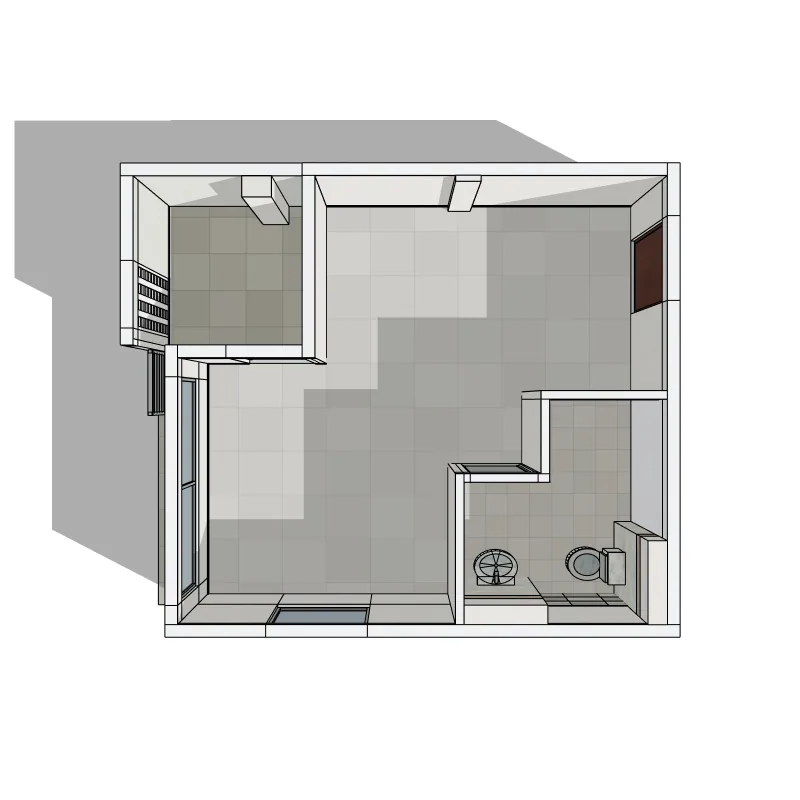
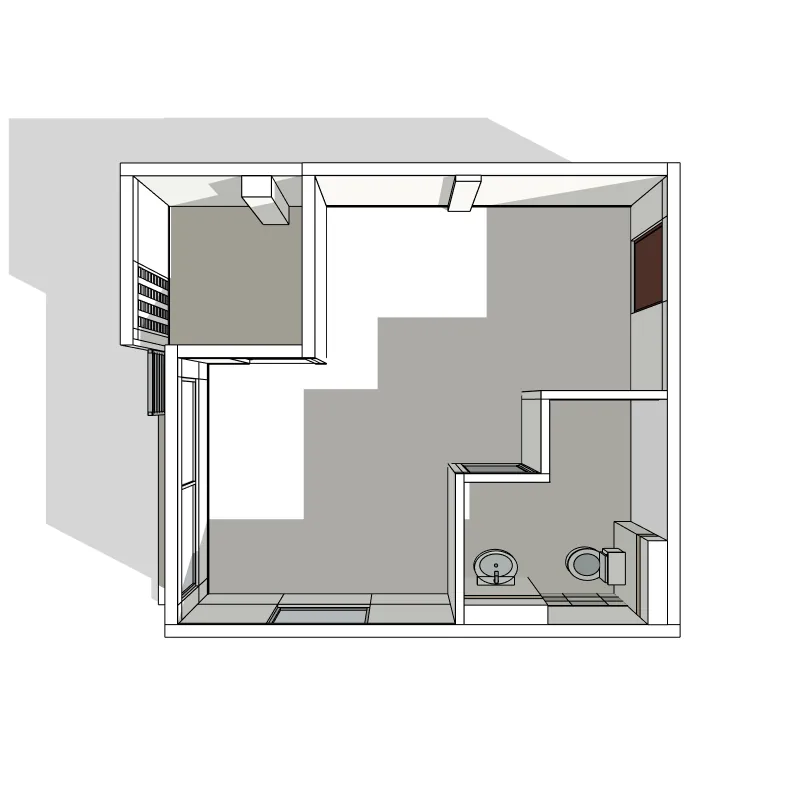
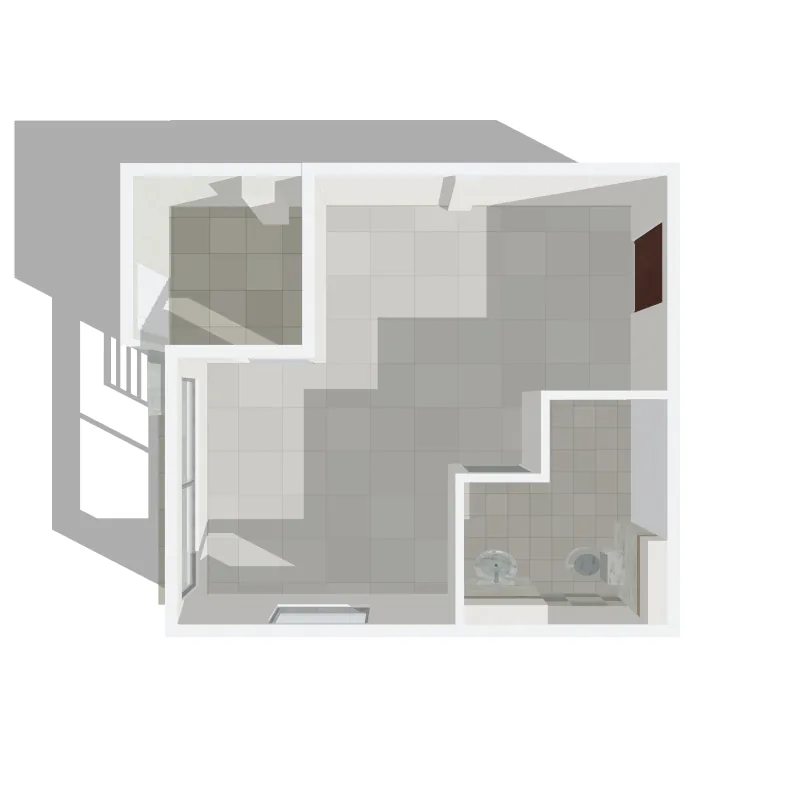
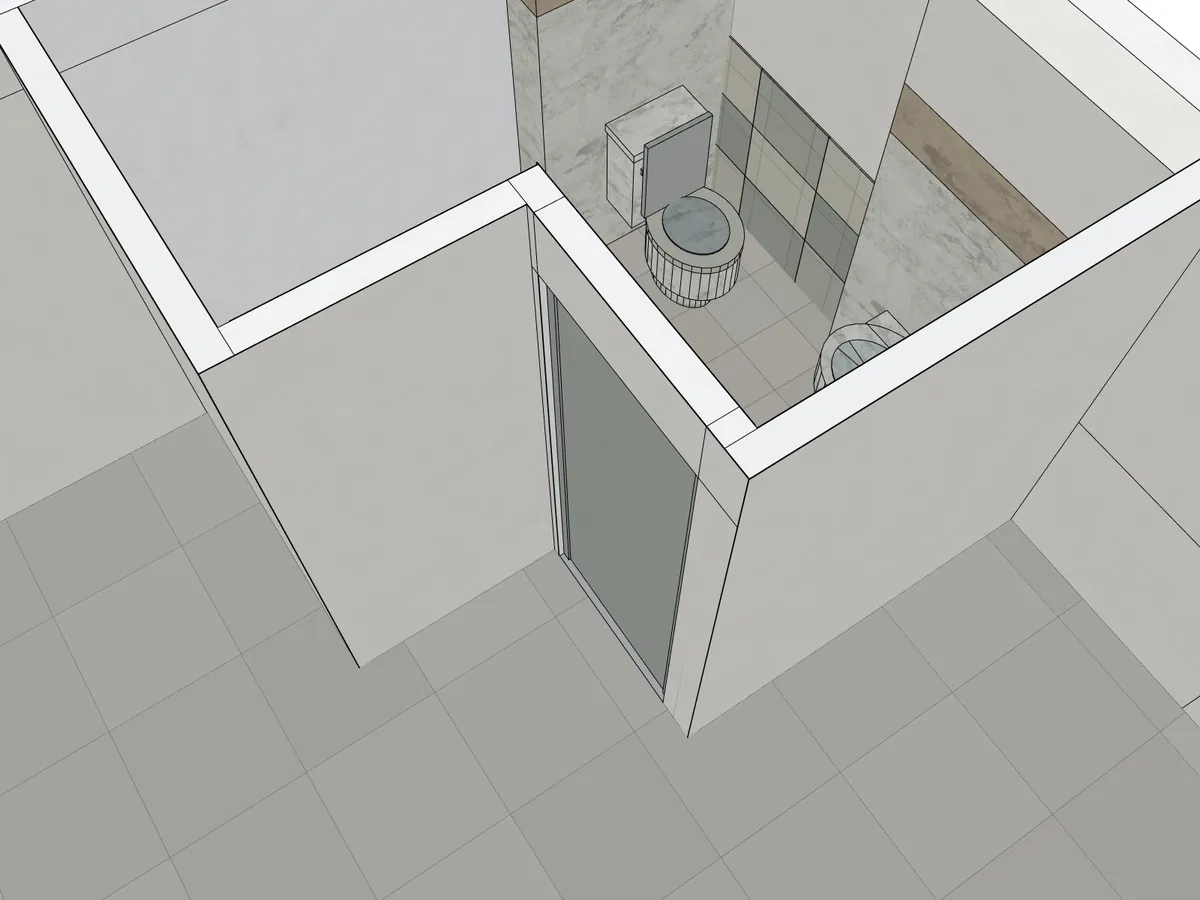
In the bathroom close-up, look at the stone wall finishes, the floor tiles, and the edges across each surface. These details make the differences in textures and geometry easier to spot.
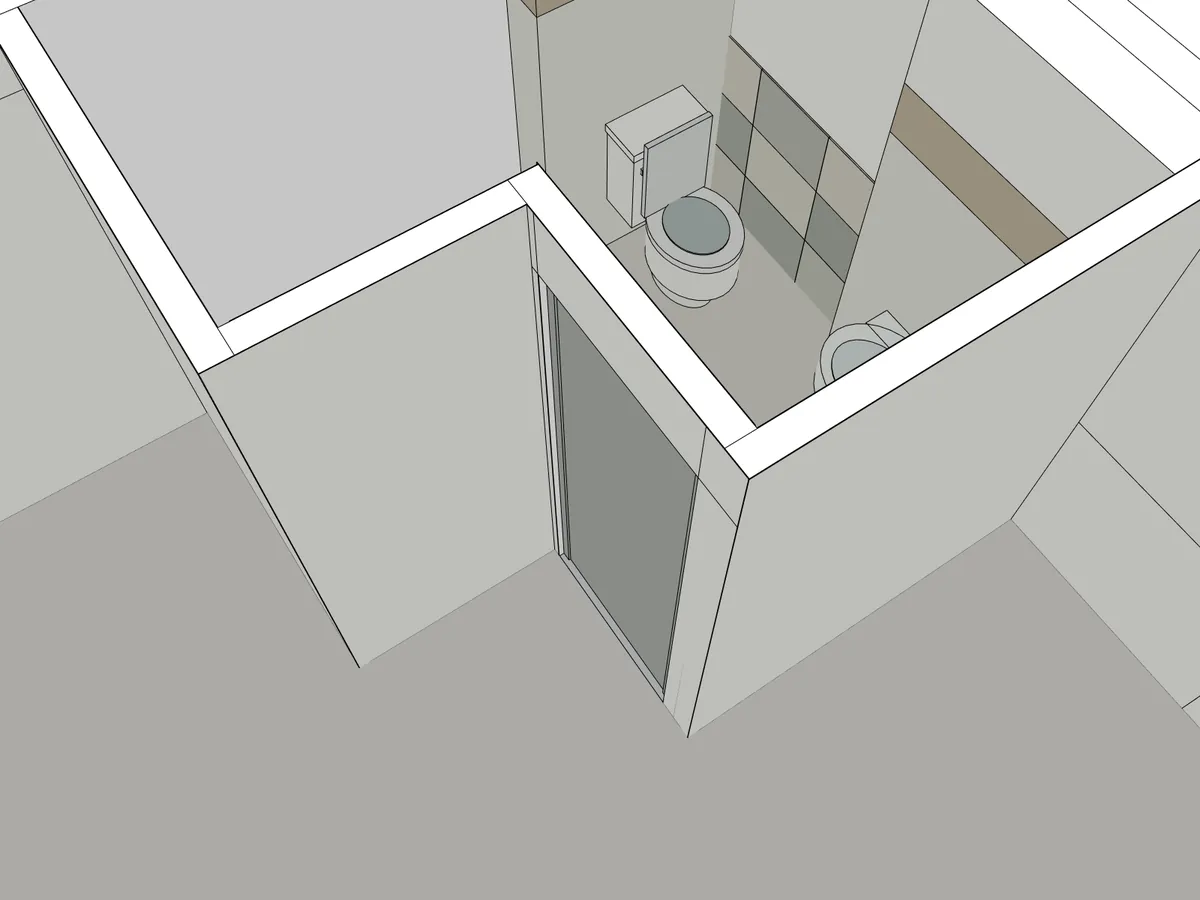
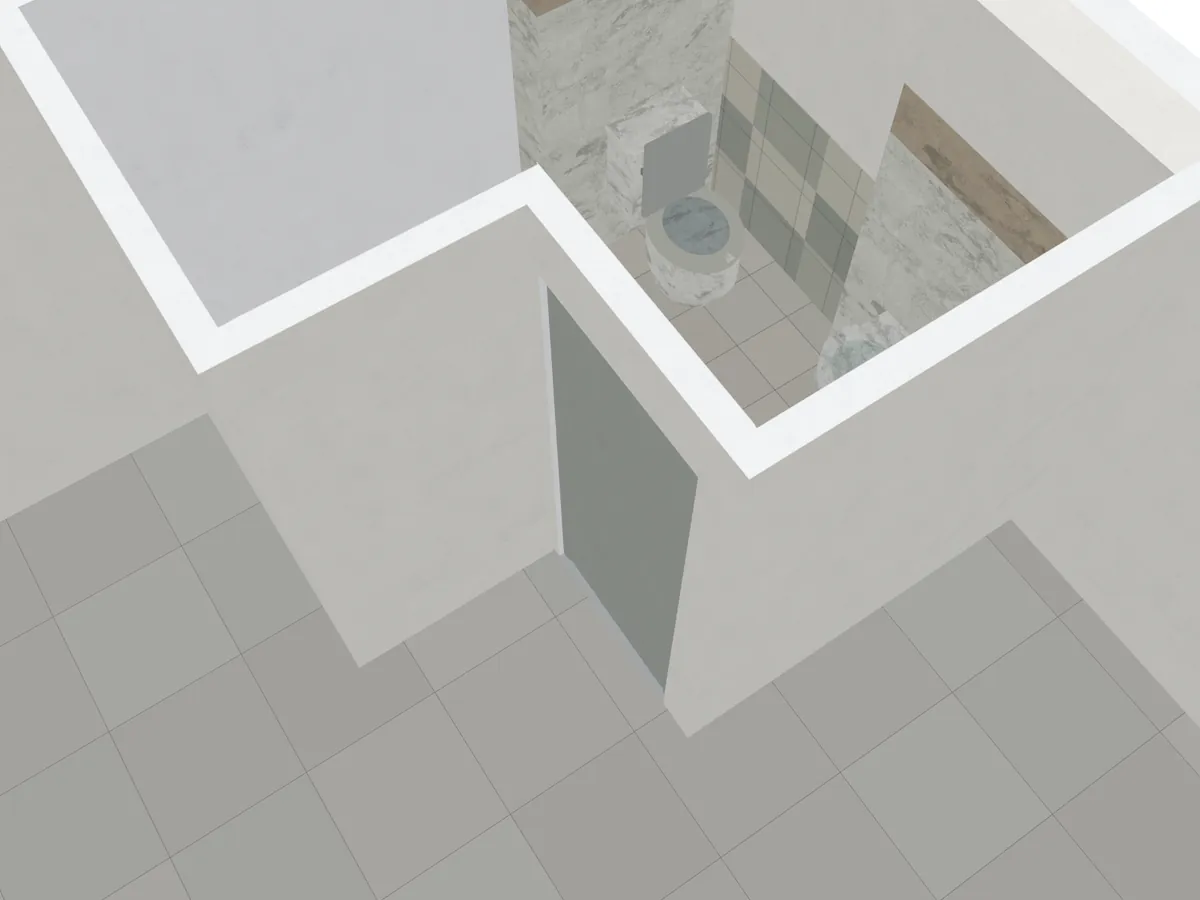
COLLADA: keep your textures and continue editing in SketchUp
COLLADA is a good starting point if you want to bring your Moom model into SketchUp with its colours and textures. Elements stay grouped, so you can continue editing individual parts as needed. The model keeps its real-world size, while measurements are displayed in the units set by your SketchUp template.
For example, you might want to keep an existing timber floor while testing a new kitchen layout. Bringing the texture across saves you from applying it again.
To import your model:
- In Moom’s export dialog, choose COLLADA model and download the ZIP.
- Extract the ZIP. Keep
model.daeand thetexturesfolder together in the same location. - In SketchUp, go to File > Import and select the COLLADA (.dae) file type.
- Select
model.dae, then open Options and make sure Merge Coplanar Faces is checked. - Confirm the options and import the model.
Merge Coplanar Faces removes unnecessary dividing edges across flat surfaces that share the same material, giving you cleaner surfaces to work with. Keep the texture folder with the model so SketchUp can find the images when importing.
What doesn’t carry over
- Only the colour texture travels, with no relief or shine maps.
- Roofs, anodised metal doors and plastics are plain colours, as they are in Moom’s viewer.
- Glass is a plain colour at 25% opacity.
- Wall textures can line up slightly differently at corners than in Moom’s viewer.
- Elements don’t arrive on tags, and SketchUp shortens each element’s name to its first word. If you need tags, use 3D DXF.
DXF: edit the geometry with colours and SketchUp tags
DXF is a good choice if you want to continue editing the model without bringing across texture images. Finishes appear as colours, and AIA/NCS layers arrive as SketchUp tags, such as A-WALL and A-DOOR, helping you organize the model.
For example, if you’re planning a new material palette, you can bring in the building shell with its existing finish colours and apply your own textures in SketchUp.
To import your model:
- In Moom’s export dialog, choose 3D CAD model (DXF) and download the file.
- In SketchUp, go to File > Import and select the AutoCAD (.dwg, .dxf) file type.
- Select your DXF file and open Options.
- Make sure Merge Coplanar Faces is checked, and set the import units to match your export.
- Confirm the options and import the model.
- Right-click the imported model and choose Explode to access the individual elements for editing.
Before you start making changes, check a known measurement to confirm the scale and open the Tags panel to review how the elements are organized.
GLB: best for viewing and sharing
GLB is a good choice when you want to share a textured model for someone to look around. It packages the geometry and textures into a single file, making it easy to pass along without managing separate texture folders.
Although supported SketchUp versions can import GLB, Moom’s GLB export isn’t well suited to further editing there. Surfaces arrive as a mesh with many small triangles rather than clean, continuous faces, so tools such as Push/Pull don’t work as you’d expect.
Use GLB for visual review. If you plan to move walls, adjust openings, or extrude surfaces in SketchUp, choose COLLADA or DXF instead.
Check the model after importing
- Confirm the scale. Measure a known distance. If a DXF arrives at the wrong size, export it in metres and select metres in SketchUp’s import options.
- Try a simple edit. For COLLADA or DXF, use Push/Pull on the top face of a wall. If the surface is split into triangles, try importing again with Merge Coplanar Faces checked. For DXF, explode the imported group first to access the elements.
- Check the organization. Look through the groups and components to confirm the elements you need are there. For DXF, check the Tags panel too.
To create the model in the first place, see how to turn a PDF or image floor plan into editable CAD.
Frequently asked questions
01Can Moom export a .skp file?

Not directly. Export your model as COLLADA (.dae) or DXF, import it into SketchUp, then save it as a .skp file. Choose COLLADA to keep textures, or DXF to keep finish colours and layer names as SketchUp tags.
02Why does the COLLADA export download as a ZIP?
The model and its textures are separate files. Unzip the download and keep model.dae next to the textures folder, so SketchUp can find the images when you import it.
03Why can’t I use Push/Pull on a GLB import?
GLB stores every surface as triangles, and SketchUp’s GLB importer has no option to join them. Flat surfaces arrive split, so Push/Pull can’t take them as one face. Export COLLADA instead and keep Merge Coplanar Faces ticked.
04Can I change a colour after importing?
Yes, but each texture has the element’s colour baked in. To change it, edit that material in SketchUp.
05Are walls and doors smart objects in SketchUp?
No. They arrive as geometry that you edit with SketchUp’s normal tools, not as parametric walls or doors.
06Can I export to SketchUp on the Free plan?
File exports are available with paid plans. The Free plan includes one floor detection, which you can review in Moom.
Still curious? Try us!
Try Moom with your own floor plan and review the result before deciding whether to upgrade. When you’re ready to export, check the plans and credit details.
Try Moom